

How to Reduce SD Card Wear on Bambu Lab Printers
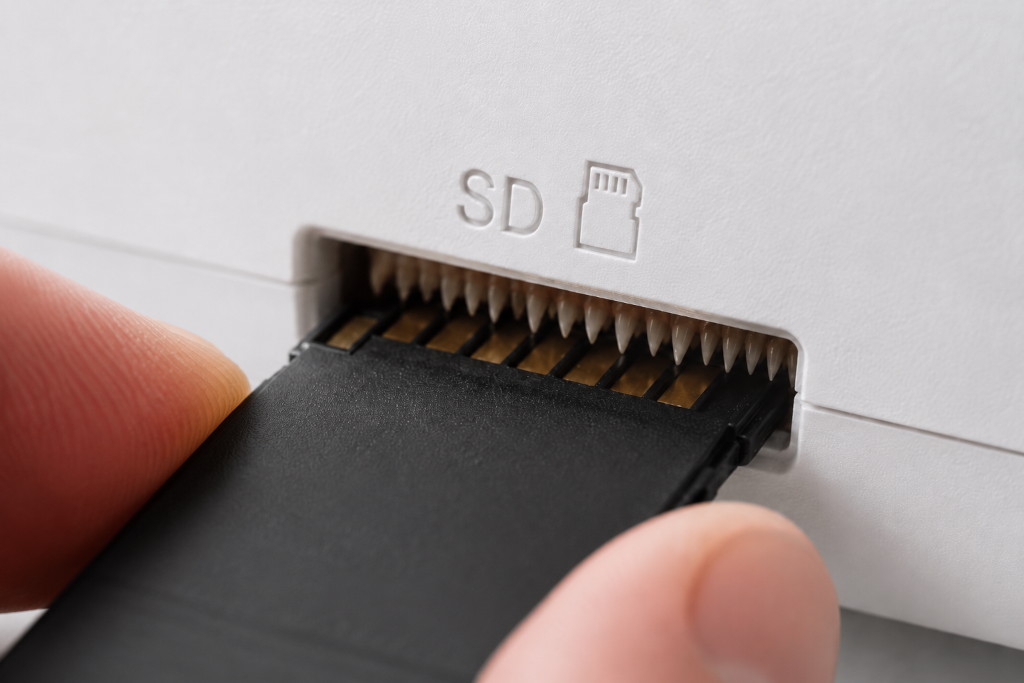
SD cards in Bambu Lab printers can eventually fail. When that happens, the printer may read corrupted commands from the card and try to execute them, which can result not only in failed prints but also in minor damage to the printer. One of the reasons is that the printer constantly writes logs and video to the card, and ordinary SD cards are not particularly well suited to this kind of workload. You can either buy a more durable card, or simply remove the logger, recorder, and ipcam directories and replace them with empty files with the same names. On the P1S, those files also need to be marked read-only.
I tested this on my A1, A1 mini, and P1S. On the A1 mini, these files have been in place since early 2025. Each printer has already logged more than ten thousand hours of printing. Only one SD card has failed. After that failure, I applied this workaround, and I have not had any SD card problems since.
So, delete only these three directories: logger, recorder, and ipcam. Leave everything else alone, although you can clean up the remaining files if you want. On the A1 and A1 mini, this is enough. On the P1S, you also need to mark the replacement files as read-only.
Create empty files with exactly the same names and no file extension. Windows users should pay particular attention to the lack of an extension.
On Windows
You can use your preferred file manager. If you have trouble creating files without extensions, use the command prompt:
type nul > logger
type nul > recorder
type nul > ipcam

attrib +R logger
attrib +R recorder
attrib +R ipcam
On Linux
rm -rf logger recorder ipcam
touch logger recorder ipcam
fatattr +r logger recorder ipcam
On macOS
rm -rf logger && touch logger && chflags uchg logger
rm -rf recorder && touch recorder && chflags uchg recorder
rm -rf ipcam && touch ipcam && chflags uchg ipcam
Then put the card back into the printer, run a print, and check that the files are still there afterward. If they are gone, you may have missed something, or a newer firmware version may have started deleting them.
How it works
I first started using this trick on Windows by creating a file in place of the System Volume Information directory, which can be disabled to some extent but never completely. Later I used the same approach in other similar situations.
Software that writes to a directory will usually check whether that directory exists and recreate it if it does not. A failed write is also something software generally has to tolerate, because the disk may be full or the process may not have permission to write there. What software often does not expect is a regular file with the same name as the directory it wants to create. That makes this a surprisingly useful trick in many situations.
The P1S is interesting because it does try to delete these files. However, it does not expect them to be read-only. Typical filesystem drivers prevent a read-only file from being modified or deleted unless the attribute is removed or the deletion is explicitly forced. The P1S does neither, which works in our favor.
What you lose
You lose the useful data behind the option to report a failed print to Bambu Lab. You also lose the rather poor-quality video recording of the printing process.
I tested this on the A1, A1 mini, and P1S with firmware versions up to 1.04. It will probably work in other cases as well, but I cannot guarantee it.
If the SD card is already dead, this trick will not bring it back. Replace the card first, then apply the workaround to the new one.
Comments and questions · Google / GitHub / anonymous